Setup guide
About fifteen minutes for the first device, under two for each one after that. You'll need a phone and the computer that will run the hub. No cables, no laptop at the shelf.
Part 1
Prefer to watch? This walkthrough shows the hub software in use.
Download it for macOS or Windows and work through the first-run security prompt. When the firewall asks about incoming connections, allow it. This is the one that matters.
The hub opens its own window with the dashboard in it. Closing the window quits the app and your counters stop being able to report, so leave it open on the back-office machine.
Closing or restarting the app never loses your counts: every change is saved on your computer the moment it happens, so the dashboard comes back exactly as you left it. Presses made while the app was closed wait on the counters and catch up when it reopens.
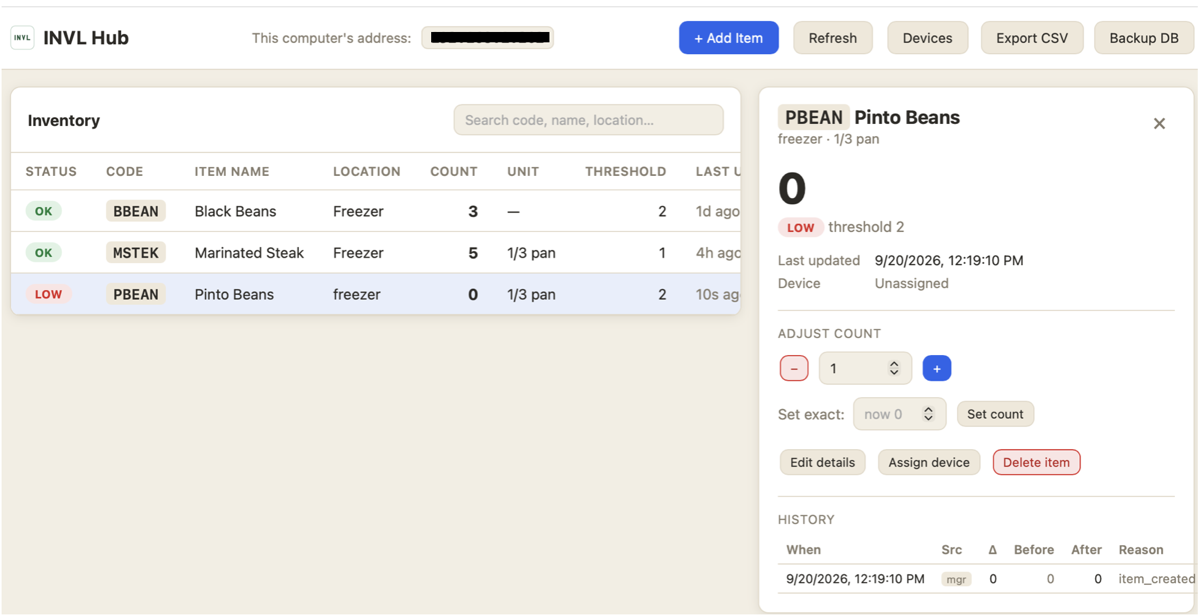
Note This computer's address in the top bar; you'll type it into each counter in Part 2.
Check the bottom of the dashboard. A red banner there means something will block devices from connecting, usually a second copy of the app already running or port 8000 in use.
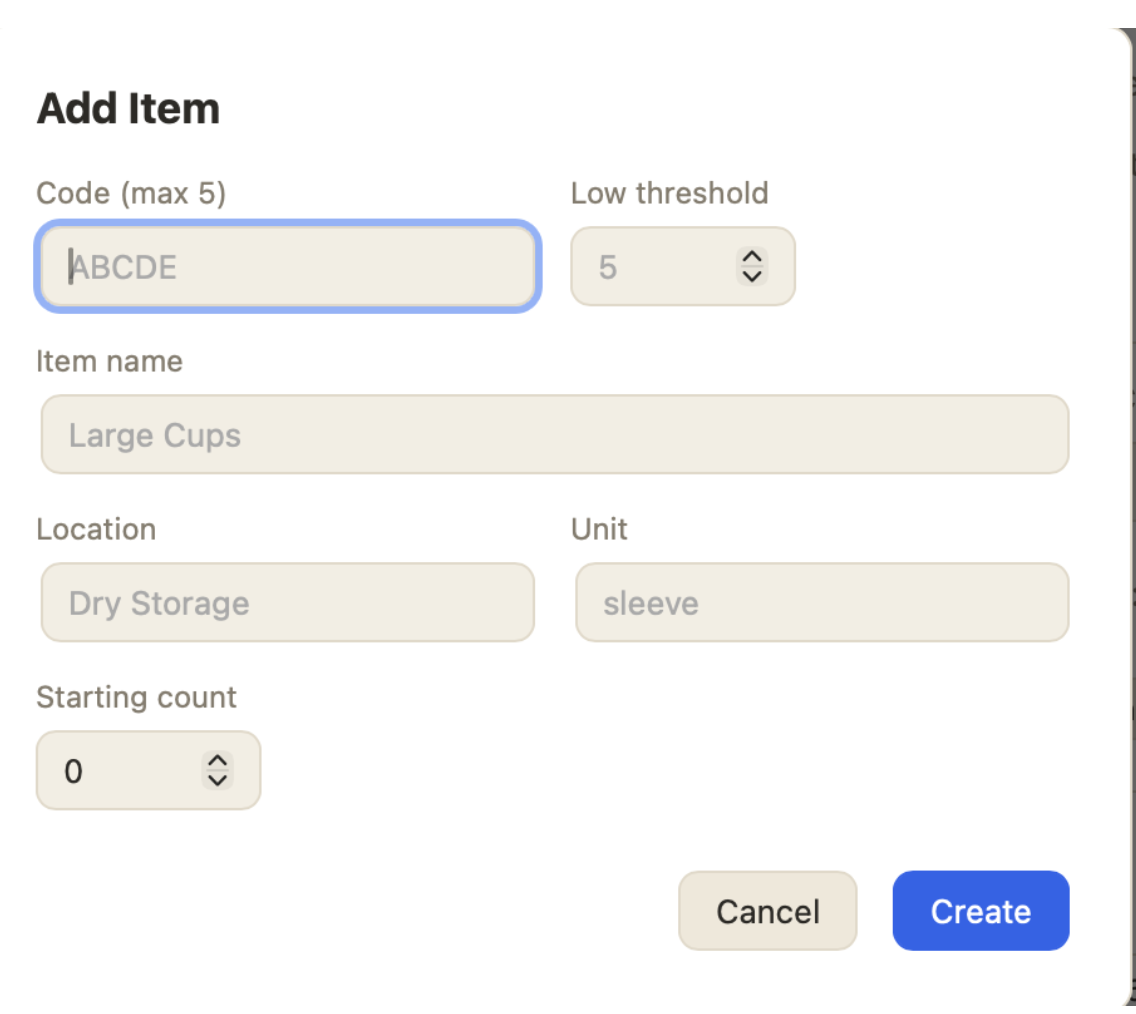
Click + Add Item and fill in:
| Code | Up to 5 characters. This is what shows on the device screen. CUPS, FRIES, TOWEL, BAGS. |
|---|---|
| Name | The full name for the dashboard: "16 oz cold cups". |
| Unit | What one press means: case, sleeve, bag, roll, bottle. |
| Location | Where it lives: "walk-in", "dry storage", "garage shelf". |
| Low threshold | The count at which the row turns red. Set it to what you'd need to reorder in time. |
Decide what a press means before you deploy: one press per case and one press per bag can't both be true for the same counter.
Part 2
You do this from a phone, standing next to the device. Nothing is typed into the counter itself.
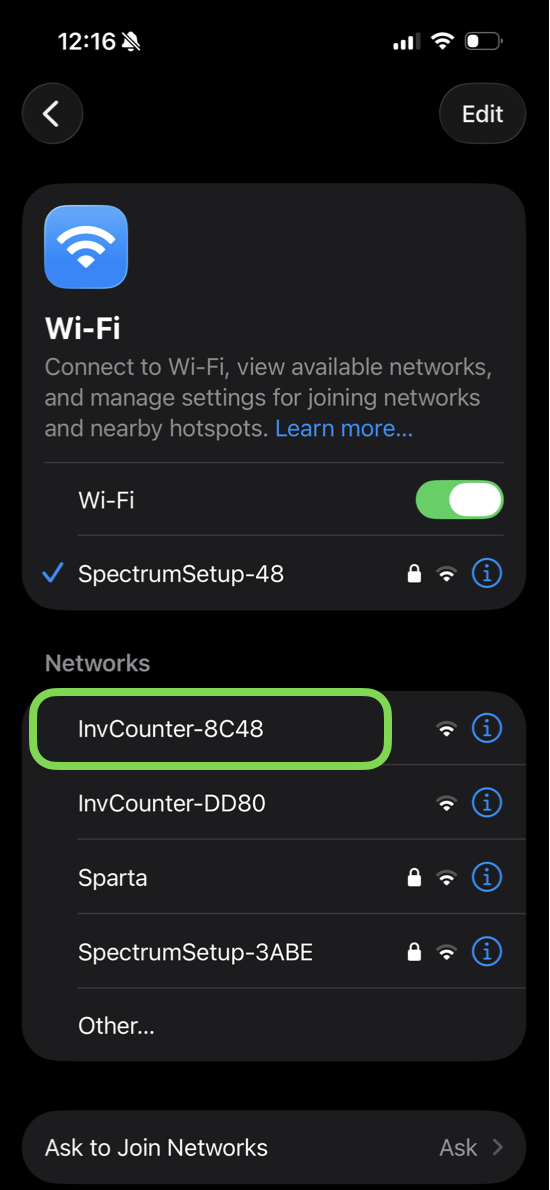
With no saved Wi-Fi, the counter becomes its own hotspot. The screen shows SETUP and a network name like InvCounter-4F2A.
Open your phone's Wi-Fi settings and connect to the InvCounter-… network shown on the screen. A setup page opens by itself; tap Configure WiFi on it. (If the page doesn't appear, open a browser and go to any address; it will redirect.)
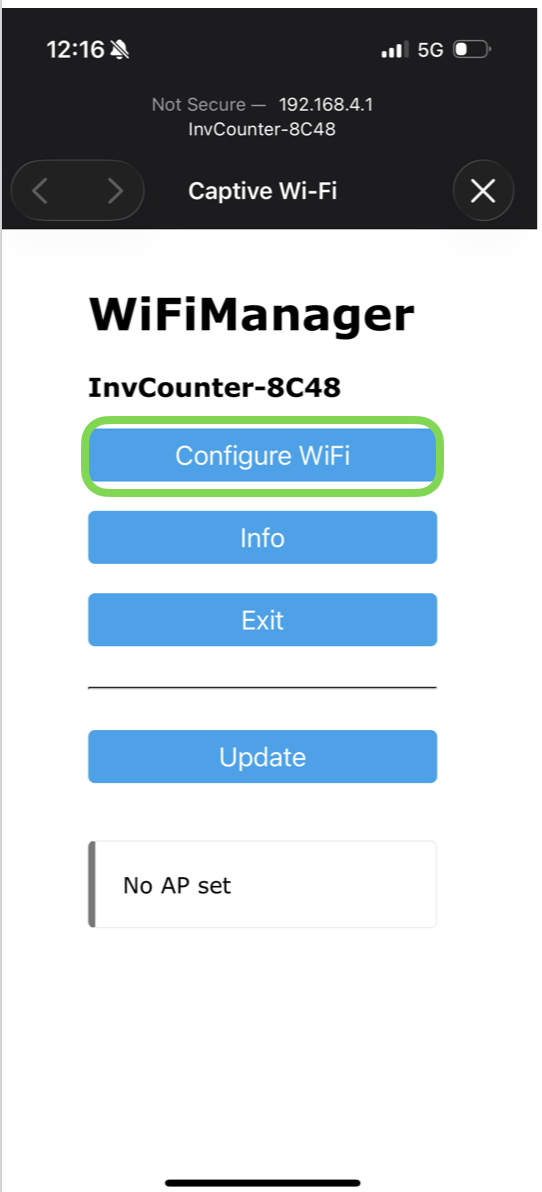
Choose your business or home network from the list and type its password. One more field sits below it:
192.168.233.27). Typing the address works on every network. You can leave the field on auto instead, where the counter tries to find your computer by itself, but some networks block that discovery, so the typed address is the reliable choice.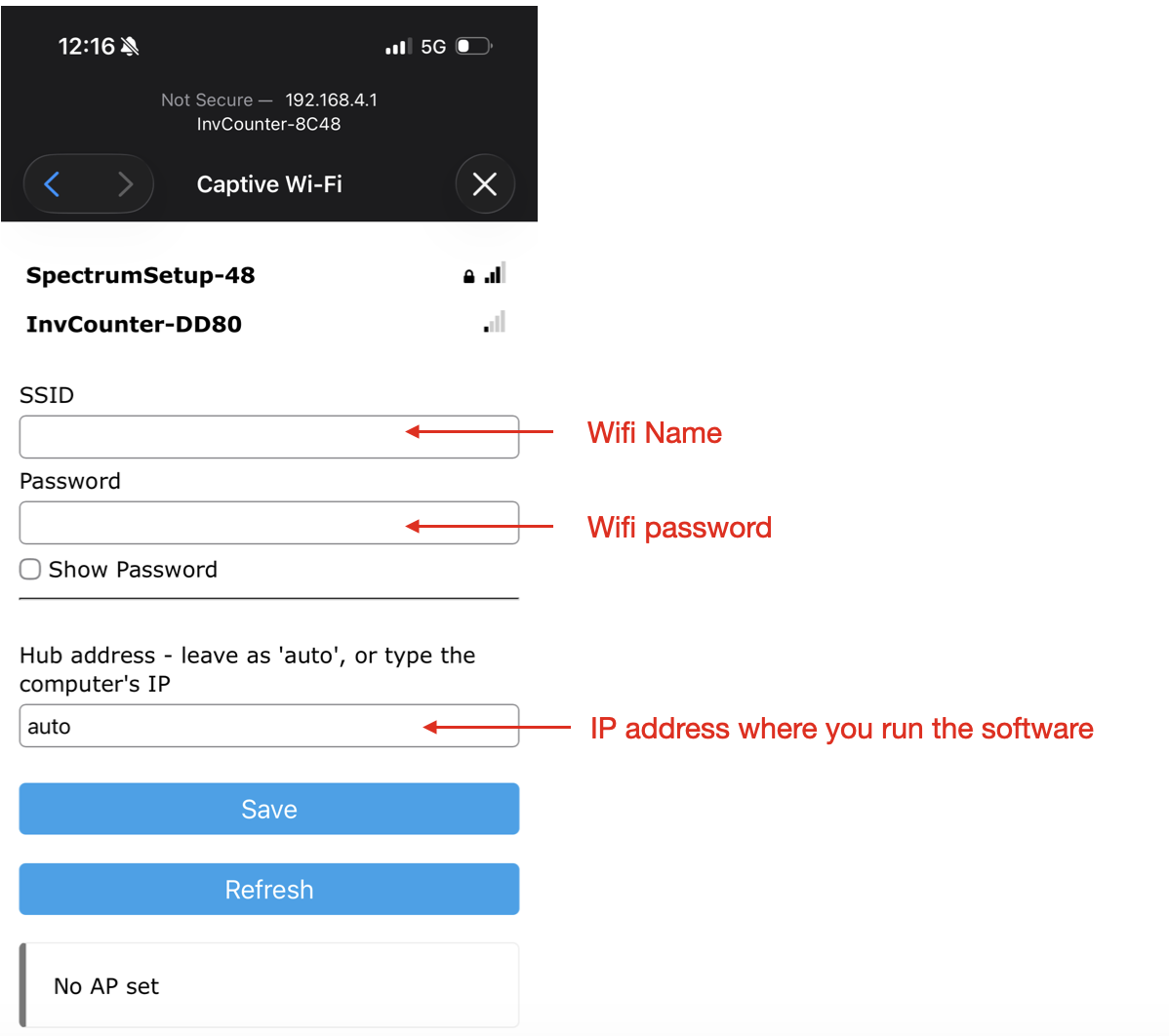
Tap Save. The counter joins your Wi-Fi, finds the hub, and rejoins as a normal device on the network. Your phone goes back to its usual Wi-Fi.
Back at the computer, a banner appears at the top: "new devices found on your network." Click Register next to the new device and give it a friendly name, like "walk-in door" or "bar fridge".
Pick which item this counter tracks, either during registration or later under Devices. The device's screen switches to that item's code and its current count within a few seconds.
You're live. Mount the counter next to the stock it tracks and press a button to confirm the dashboard moves.
Adding more counters later? Repeat Part 2 only. Each new device announces itself and shows up in the same banner.
Reference
| Top line | The item code, up to 5 characters, pushed from the dashboard. |
|---|---|
| Big number | The current count, 000–999. Bigger numbers are clamped on the display only; the dashboard keeps the true figure. |
OK | Last report reached the hub. |
ERR | The hub didn't answer. Presses are held and retried. |
WIFI | Reconnecting to the network. |
* top-left | Presses are queued, waiting for the next report (every 30 seconds). |
SETUP | No Wi-Fi saved. The device is waiting for Part 2. |
Day to day
Open an item on the dashboard and use +/− with an optional reason, or Set exact after a physical recount. The device picks up the corrected number on its next check-in. The database always wins.
Sort by status to bring the red rows up, then Export CSV for the whole inventory. Every count carries the time it was last changed.
Each item keeps a full log of every button press and every manual adjustment, timestamped. Useful when a number looks wrong and you want to know when it went wrong.
Snapshot backup at the bottom of the dashboard saves a dated copy alongside your data. Backup DB in the toolbar saves a copy anywhere. Do this before moving to a new computer.
Troubleshooting
Nine times out of ten this is the firewall. The app looks perfectly healthy while every device fails silently. Allow the hub app incoming connections on private networks, then check that the computer and the counter are on the same Wi-Fi (not a guest network, and not one band isolated from the other).
ERRThe counter has Wi-Fi but can't reach the hub. Confirm the hub app is open on the back-office computer and that the machine hasn't gone to sleep. Presses aren't lost; they queue and send when the hub answers.
WIFI for a long timeWrong password, or the counter is out of range. Re-provision it (below) and retype the password. If it's in a walk-in or a metal rack, move it toward the opening. Steel enclosures kill 2.4 GHz.
Reset the counter. It takes ten seconds and no laptop:
RESET / releasing config. That's your confirmation.This wipes the saved Wi-Fi and hub address, then reopens the InvCounter-… setup hotspot so you can re-provision from a phone (Part 2 above).
The dashboard is right. Set the exact count there and the device adopts it within a few seconds. If it keeps drifting, someone is probably pressing for a different unit than the item is set up for. Check what one press is supposed to mean.
Usually a second copy of the hub app already running, or another program holding port 8000. Quit the duplicate, or free the port, and restart the app.
Use Backup DB on the old machine, install the app on the new one, and drop the file into its data folder. If your counters have a typed Hub address and the new computer's address is different, update each counter with the new address, shown at the top of the dashboard; counters left on auto follow the move by themselves.
Still stuck? Email invlmanagement@gmail.com with what the device screen says and what the bottom of the dashboard says. Those two lines identify almost every problem on their own.